Connect an existing project · 5 minutes
Connect an existing Unity project
Attach Aura to a Unity project you already have without moving or uploading the project.
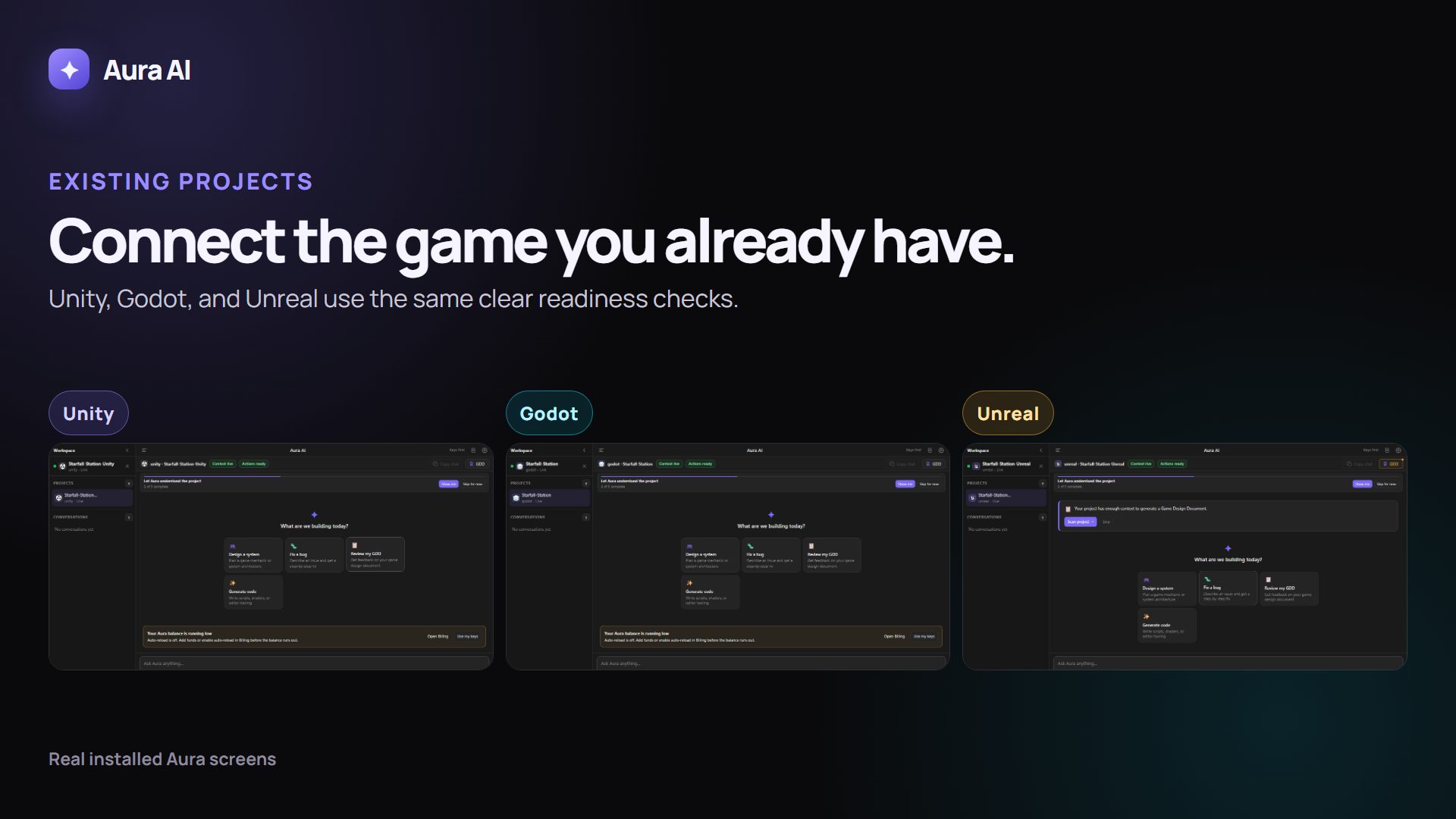
The silent walkthrough could not load. The screenshot and written steps remain available.
Use this guide with Aura
Open Aura, then keep this guide beside it while you follow the steps. Aura does not receive the page text, your account, your project, or anything you typed.
If nothing opens, start Aura normally. The written steps still work.
Before you start
- The Unity project opens successfully on this computer.
- Aura AI is installed and signed in.
Plan and model funding
Connecting and local scanning do not spend model funding. A model request uses the funding source shown in Aura.
Say this in ordinary language
Tell me what this project does and point out one safe improvement. Do not change anything yet.
Steps
-
1
Choose Connect an existing project.
What you should see: Windows opens a folder picker.
-
2
Choose the Unity project root that contains Assets and ProjectSettings.
What you should see: Aura identifies Unity and shows the connected project.
-
3
Open the project in Unity if it is not already open.
What you should see: The Aura panel/plugin connects to the same project.
-
4
Send the safe prompt above.
What you should see: Aura answers from project context and does not propose a write unless requested.
What Aura may change
Aura adds its local project identity/context files as designed and indexes supported project context. It does not upload the project by default.
How to verify it worked
The project name and Unity engine appear in Aura, and the answer matches files in that project.
Undo or recover
Disconnect or remove the project from Aura. Reject any proposed write action.
Common problems
- Choose the project root, not the Assets folder.
- If the plugin does not connect, reopen Unity after Aura is running.