Help Center
Quick reference and troubleshooting for Aura AI.
Start with the matching tutorial
Aura Tutorials show the full task, what you should see at each step, who pays for model usage, how to prove the result in the real project, and how to undo or recover.
🚀 Quick Start Guide
- Download Aura AI for Windows. macOS is coming soon. Run the installer.
- Launch Aura AI — it will appear in your system tray and start in the background.
- Sign in when prompted (Google, GitHub, or email). Your account is created automatically on first sign-in.
- Choose Build inside Aura, Start a new game in an engine, or Connect an existing project. Install any engine separately.
Open the written starting-path guide. It includes the reviewed silent walkthrough captured from the installed Aura experience.
Included integrations: Unity · Godot 4 · Unreal Engine · VS Code · Visual Studio 2022 · JetBrains Rider. Context and action coverage differ by workflow.
🧠 GDD & Project Indexing
Aura AI indexes your project in the background. To align Aura with your Game Design Document:
- Open a project, then use the GDD button in Aura's top bar to attach or create its design document.
- PDF, Word (.docx), Markdown, and plain text files are supported.
- Ask Aura: "Is this combat system in line with my GDD? Please explain without changing anything."
- Describe the art in ordinary language. If you name another game, Aura should extract useful design principles while keeping your characters, world, interface, and assets original.
- Review the saved art direction and preserve-or-create choices before approving asset work. See the GDD and art-direction guide.
💳 Managing your Account
Everything is managed from your Aura Dashboard or from inside the Hub app itself.
- View Usage: Sign in at aurainc.co/dashboard to see trial requests, provider-key status, Aura balance, deposits, and usage history. The panel's top bar shows the active funding source and only low/empty warnings; exact money stays in the funding details.
- Model Funding: The one-time Trial includes 100 Gemini 2.5 Flash requests. Personal BYOK is free indefinitely, while your provider bills model usage directly. Aura-hosted models use prepaid Aura balance. Pro and Studio software subscriptions do not include model usage. Aura never changes to a paid payer automatically.
- Failed subscription payments: If a renewal fails or your bank requires confirmation, only the affected paid cloud or Studio feature pauses until billing is fixed. Core local features, free Personal BYOK, and existing Aura balance remain available. Open Dashboard - Billing to resolve it.
- New computer: Sign in with the same Aura account to restore your account, saved personal-key configuration, and paid cloud entitlement. Local-only chats, GDDs, rules, and project context do not automatically sync; use Aura Settings - Transfer Aura Data on the old computer, or Pro cloud continuity where enabled.
- Update Billing / Cancel: Go to Dashboard → Billing. Aura lets you choose plans there, and Stripe handles secure payment details and cancellation confirmation.
Security Authentication
Aura supports three sign-in methods — use whichever is easiest for you:
- Google OAuth — One click, no password. Recommended for most users.
- GitHub OAuth — Sign in with your GitHub account.
- Email + Password — Create an account with your email address and a password. Go to aurainc.co/auth/email and select "Create Account".
The Hub refreshes a valid session in the background. If the session expires or is revoked, sign in again to reconnect.
🛠️ Troubleshooting
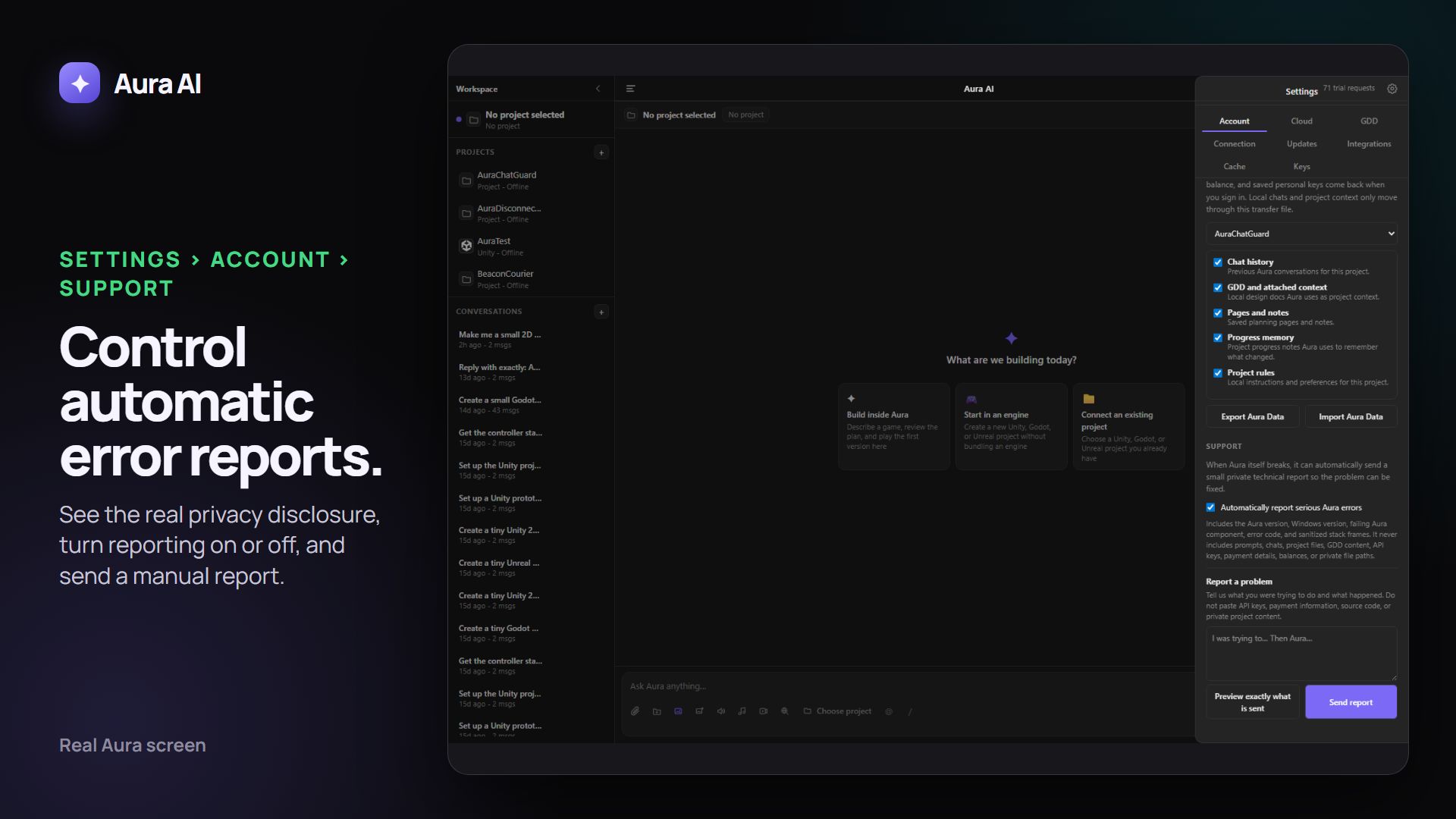
- Hub not connecting? Make sure Aura AI is running in your system tray, restart Aura AI, then reopen your engine or IDE. If it still cannot connect, check Windows Firewall and send a diagnostic report from Aura AI → Settings.
- No model response? Check your internet connection, sign-in state, selected model, and the funding source shown in Aura. A failed Pro or Studio renewal pauses only the affected paid cloud/team feature; it does not remove Core, valid Personal BYOK, or an existing Aura Balance.
- Trial or Aura funding unavailable? Trial requests are one-time and do not reset. For a reviewed multi-step build, Aura requires the selected payer to cover the whole worst case before approval. Connect a provider key for provider-billed usage, reduce the reviewed work, or add Aura balance for Aura-hosted models. Core local work remains available without either source.
Automatic problem reports:
When enabled, Aura privately sends a small technical report if Aura itself breaks and gives the incident a reference such as AURA-12AB34CD56EF. It never sends prompts, chats, project content, GDDs, keys, payment information, balances, or private file paths. You can review the exact fields, turn automatic reports off, or send your own description from Aura AI → Settings → Account → Support.